
How to Use Your Android Phone as a TV Remote (Every Major TV Brand)
Turn your Android phone into a TV remote for Samsung, LG, Roku, Google TV, Fire TV and more. Free official apps, one universal option, and fixes.
The remote is lost in the sofa again, or the batteries just died. Good news: if you have a smart TV and an Android phone, your phone can be the remote.
The short answer: connect your phone and your TV to the same Wi-Fi network, install a remote app that supports your TV, pick your TV in the app, and accept the pairing request on the TV screen. That's it. For older TVs without Wi-Fi, you need a phone with an infrared (IR) blaster instead.
Below you'll find the free official app for each major TV system, a universal option, and what to do when the phone can't find the TV.
Step 1: Find out what system your TV runs
The brand on the front of the TV is not always what matters. What matters is the software inside it. For example, a TCL TV can run Roku, Google TV or Fire TV. Look at the TV's home screen or its settings ("About") to see which one you have:
- Samsung smart TVs run Samsung's own system (Tizen).
- LG smart TVs run webOS.
- Roku TV (sold by TCL, Hisense, onn. and others) or a Roku stick or box.
- Google TV / Android TV (Sony, TCL, Xiaomi, Philips, Hisense and others, plus Chromecast with Google TV).
- Fire TV (Amazon Fire TV Stick or a Fire TV smart TV).
- VIZIO SmartCast TVs.
Step 2: Put the phone and TV on the same Wi-Fi
This is the most common reason a remote app "doesn't work". Check:
- The phone is on Wi-Fi, not mobile data.
- Both are on the same network name. If your router has a "guest" network, don't use it for either device. Guest networks often block devices from seeing each other.
Step 3: Use the official app for your TV (free)
Each TV maker has a free app with a remote inside it. Here is where to find it:
| Your TV | Free official app | How to start |
|---|---|---|
| Google TV / Android TV | Google TV app | Tap the TV remote option near the bottom right, choose your TV, type the code shown on the TV, tap Pair (Google TV Help). You can also add a remote tile to Android's Quick Settings. |
| Samsung | SmartThings | Add the TV as a device, then open it to show the remote. Samsung says it needs Android 10 or newer (Samsung Support). |
| LG | LG ThinQ | Add your TV with "Add a Device", then open it to show the remote. |
| Roku | Roku mobile app | Pick your Roku. If it can't connect, go to Settings › System › Advanced system settings › Control by mobile apps › Network access, and choose Default (or Permissive). |
| Fire TV | Amazon Fire TV app | Pick your device, then type the code shown on the TV. |
These apps are free and made by the TV makers themselves, so they are a good first choice if you only have one TV.
The downside: if your home has several TVs from different brands, you need several apps, and some of them ask you to create an account first.
Option: one app for all your TVs
We are building Universal TV Remote, a remote app for Android. It is coming soon to Google Play (it is in testing now). It is made for homes with more than one kind of TV, and for people who just want a simple remote:
- One app for many TV systems: Samsung (2016 and newer), LG webOS, Roku, Google TV and Android TV, Fire TV, VIZIO, Philips (Saphi and Titan OS), older Hisense VIDAA models, and many budget Android TVs that run EShare.
- Every button is free: power, volume, the arrow pad and OK, back, home, channels, input, number pad and colour keys. There are no ads on the remote screen, and volume or OK are never locked behind a subscription.
- No account. Open the app and tap your TV.
- Type with your phone's keyboard to search on the TV.
- A touchpad: swipe to move, tap for OK.
- Your TV's apps (for example YouTube or Netflix) as one-tap shortcuts on the remote.
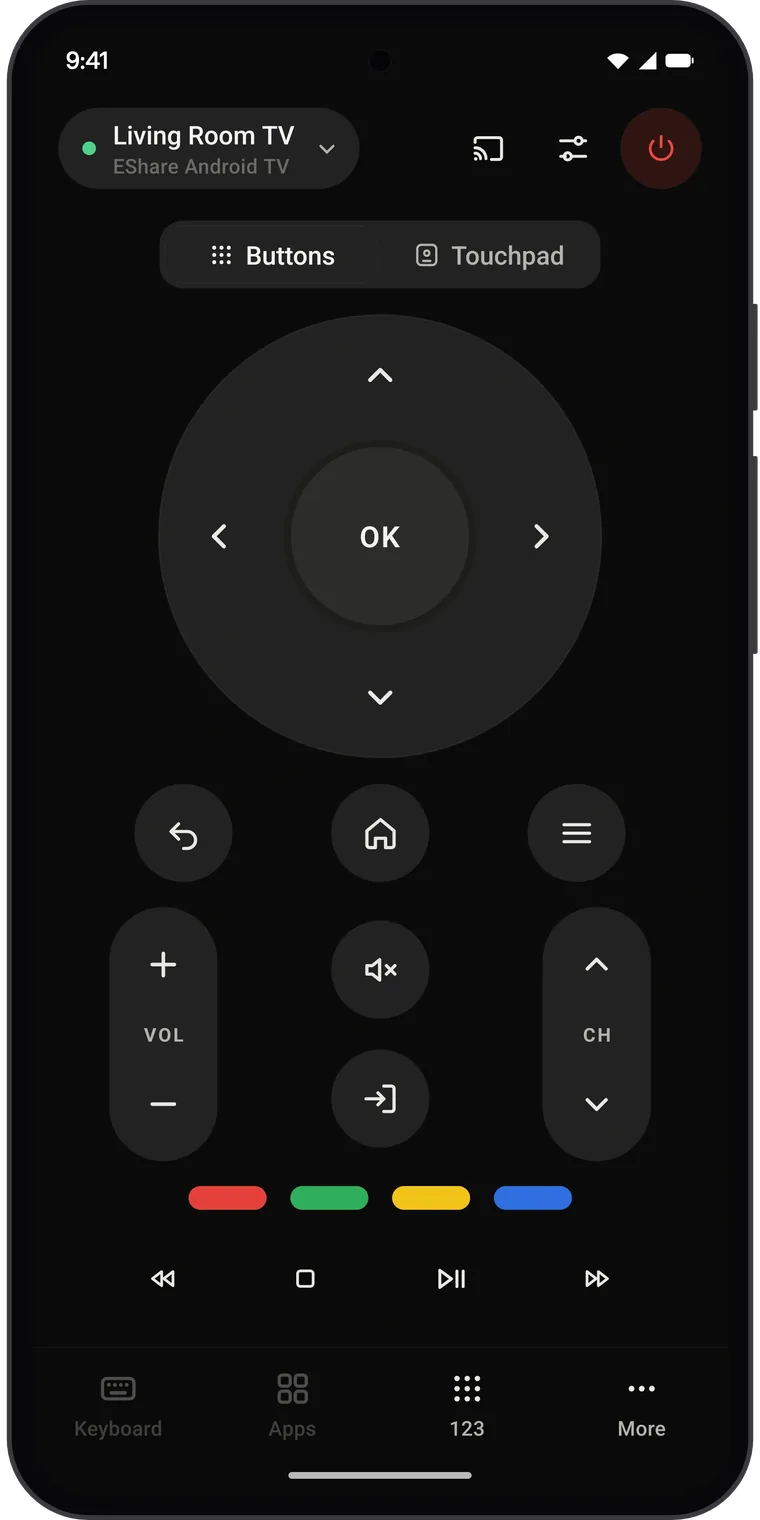
An optional Remote Pro upgrade adds extras such as a notification remote, a home-screen widget and themes, and removes the small banner ad on the TV list and Settings screens. You never need it for the remote buttons.
How connecting works in Universal TV Remote
- Put your phone on the same Wi-Fi as your TV.
- Open Universal TV Remote. It looks for TVs by itself and lists them.
- Tap your TV.
- If the TV asks, choose Allow on the TV (Samsung, LG) or type the code it shows (Google TV, Fire TV, VIZIO). Roku TVs need no code.
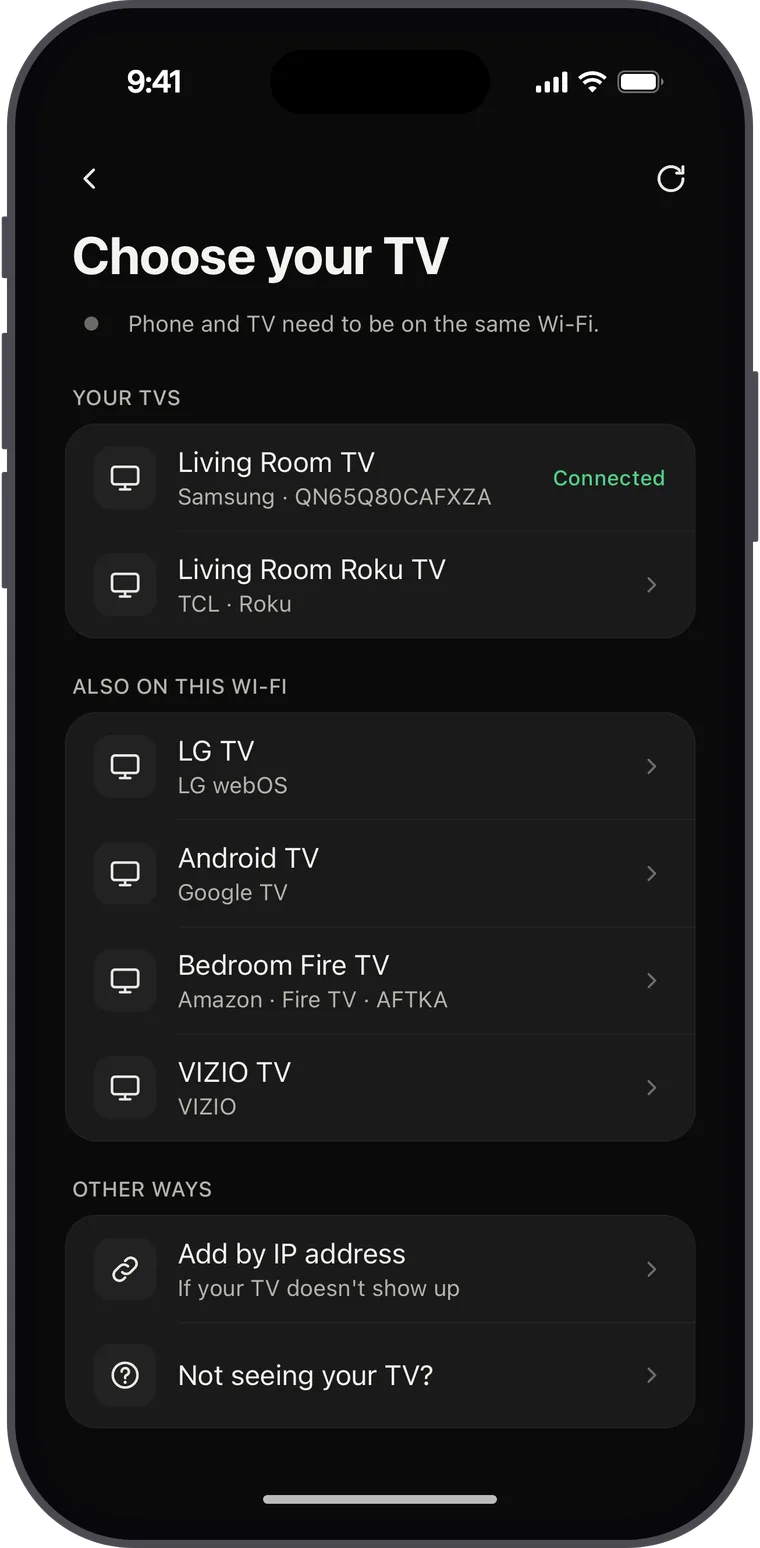
If your TV doesn't show up, Universal TV Remote also lets you add it by its IP address (you'll find the address in the TV's network settings).
If your phone can't find the TV
Try these in order:
- Turn the TV on fully. Some TVs switch their Wi-Fi off in standby. If the remote is lost too, see how to turn on and control your TV without the remote.
- Check the network again. Same Wi-Fi name on both. Not the guest network. Phone not on mobile data.
- Turn on the TV's mobile control setting. Some TVs have a switch for this:
- Roku: Control by mobile apps › Network access should be Default or Permissive, not Limited or Disabled.
- Google TV: allow the pairing request when it appears.
- Restart the TV and the router. Unplug the TV for about 10 seconds. This clears many connection problems.
- Check your router. Some routers have a setting called "AP isolation" or "client isolation" that stops devices on the same Wi-Fi from talking to each other. It must be off.
- Use the IP address. If automatic search fails, add the TV by IP address in an app that supports it.
What about TVs without Wi-Fi?
Older TVs, and many simple TVs, can't connect to Wi-Fi at all. A Wi-Fi remote app can't reach them. You have two choices:
- A phone with an IR blaster. Some Android phones have a small infrared light on top, just like a normal remote. This is common on Xiaomi, Redmi and POCO phones; many of them come with Xiaomi's own remote app (Xiaomi Support). Universal TV Remote also works with IR blasters, for many TV brands.
- A replacement or universal remote. Look for the model number on the sticker on the back of your TV and buy a remote that lists it.
You can check if your phone has an IR blaster by searching for your phone model plus "IR blaster", or by looking for a small dark window on the top edge of the phone.
Quick checklist
- TV is a smart TV (or your phone has an IR blaster)
- Phone and TV on the same Wi-Fi, not a guest network
- The right app for your TV, or one universal app
- Pairing accepted on the TV (Allow, or the code)
- Router "AP isolation" turned off, if nothing else works
Once it's set up, your phone is a full remote: often a better one, because typing a search with your phone's keyboard is much faster than picking letters one by one with arrow keys.