
How to Sign a PDF on Android Without Printing It
Sign a PDF on your Android phone in a few minutes, with free built-in tools or an app. Fill in the form, add your signature and send it back.
Someone sends you a PDF to sign: a rental agreement, an offer letter, a school permission form. You don't have a printer, and you don't want to print, sign, scan and send it back.
The short answer: you can sign a PDF directly on your Android phone. Open the PDF in an app that lets you draw on it (Google Drive can do this for free), or use a PDF app that saves your signature and lets you place it exactly where it belongs. Then save the file and send it back.
This guide shows both ways, step by step, and explains what a "signature" on a phone really is.
First: what kind of signature do they need?
There are two very different things people call an "e-signature":
- A drawn signature. You draw your signature with your finger (or a stylus) and it is added to the PDF as an image. This is what most people need for everyday forms, and it is what the methods below do.
- A certified digital signature or e-signature service. Some contracts are sent through a signing service that records who signed and when (an "audit trail"). If you received a link from such a service, sign inside that link, not in a separate app.
If you are not sure which one the sender expects, ask them. It saves a second round of signing.
Method 1: Sign with Google Drive (free, built in on many phones)
The Google Drive app for Android has a pen tool for PDFs. You can use it to draw your signature directly on the page.
Steps:
- Save the PDF to Google Drive (or open it from Drive if it is already there).
- Open the PDF in the Drive app.
- Tap the Annotate button (a pen icon) at the bottom right.
- Choose the pen, then draw your signature with your finger on the signature line. Zoom in first so you have more space.
- Tap Save. You can save over the original or save a new copy, which keeps the original unmarked.
Google's help page for this feature says it needs Android 6.0 or newer (Google Drive Help).
Good to know:
- You draw your signature fresh each time, directly on the page. You can't save it and reuse it.
- It is freehand drawing, so it can be hard to make it small and neat on a phone screen.
- Drive can also fill in many fillable PDF forms on Android, if the form has real form fields (Google Workspace Updates).
For a quick, one-off signature, this is often enough.
Method 2: Sign with DocMaster (save your signature, place it neatly)
DocMaster is our free PDF app for Android (get it on Google Play). It shows ads, but there is no account and no watermark on what you save. Signing and form filling happen on your phone; the document is not uploaded.
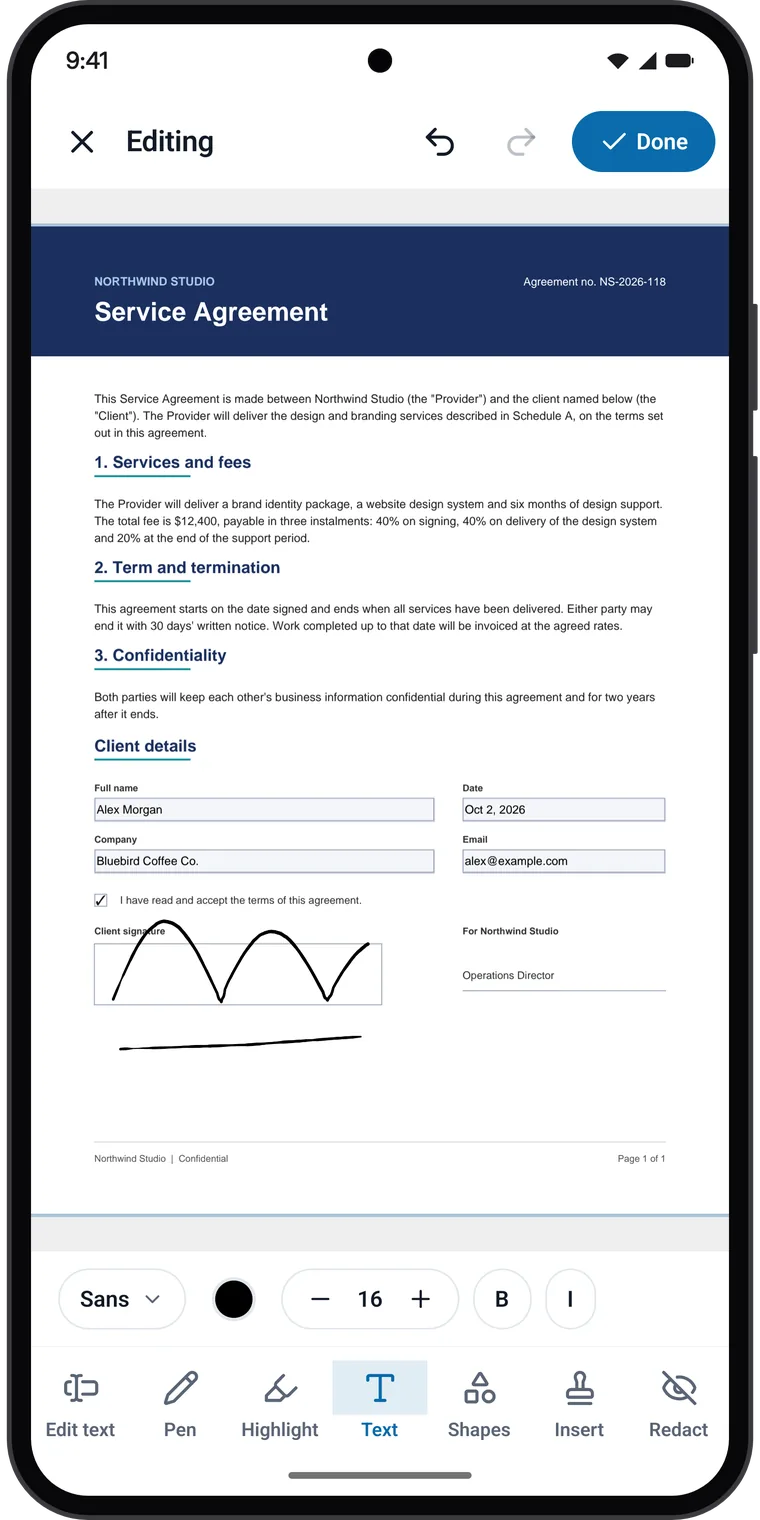
Add your signature
- Open DocMaster and go to the Tools tab.
- Tap Signature, then choose the PDF you need to sign.
- Add your signature. Tap Draw to draw it with your finger, or Pick file to use a picture of your signature.
- Tap Done. You can keep up to three signatures saved on your phone (for example, your full signature and your initials), so next time you don't have to draw again.
- Tap Place Signature.
Place it on the page
- Drag the signature onto the signature line.
- Use the corner handle to make it bigger or smaller.
- Use Prev and Next to go to the right page.
- Tap Apply.
The signed copy is saved to your Downloads folder, and you can tap Share to send it by email, WhatsApp or any other app.
Filling in the rest of the form
Most documents need more than a signature: your name, a date, a tick in a box.
- If the PDF has form fields (boxes you can tap), open it in DocMaster, tap Edit, choose Edit text, and then tap a field to type. DocMaster fills text fields, check boxes, choices and signature fields.
- If the form is a printed or scanned page with no real fields, use the Text tool in the editor to add text and dates anywhere on the page.
- If a word in the document itself is wrong (a name or a date), you can change it in the same font: see how to edit text in a PDF on Android.
When you finish, tap Done, then choose Replace Original or Save as New Copy.
Limits to know: some government forms use an older form format (XFA) that many apps, including DocMaster, can't fully fill. DocMaster tells you when it finds one, and you can still sign it. A drawn signature is an image of your signature, not a certified digital signature.
Method 3: Print, sign and scan (if you must)
If the sender asks for a "wet" signature (ink on paper), you will need to print it. You can still use your phone for the scan:
- Print and sign the page.
- In the Google Drive app, tap + (or the camera button), then Scan (Google Drive Help).
- Take a photo of each page. The scanner crops and straightens it for you.
- Save it as a PDF and send it.
Tips for a signature that looks right
- Zoom in before you draw. A bigger drawing area gives a smoother signature. Then make it smaller to fit the line.
- Use a stylus if you have one. Even a cheap rubber-tip stylus helps.
- Sign once and reuse it. If you sign often, an app that saves your signature gives you the same clean result every time.
- Check every page. Many contracts need initials on each page and a full signature at the end.
- Keep a copy. Save the signed version before you share it.
Is it safe to sign PDFs on my phone?
Signing on your phone is usually safer than using a random website, because you don't upload the document anywhere. A few habits help:
- Only sign documents from people or companies you expect to hear from.
- Read the whole document before signing, not only the signature page.
- Be careful with online "free PDF signers" for private documents such as leases or contracts, because the file is uploaded to their server.
- Your signature image is personal. DocMaster keeps saved signatures in its own private folder on your phone, not in your gallery or Downloads.
Summary
| You need to... | Easiest way |
|---|---|
| Sign one PDF quickly | Google Drive's Annotate pen |
| Sign often, neatly, with a saved signature | A PDF app such as DocMaster |
| Fill in boxes, dates and tick boxes too | A PDF app with form filling |
| Use a signing service link | Sign inside that link |
| Provide an ink signature | Print, sign, then scan with your phone |
You don't need a printer to sign most documents. With your phone, you can read, fill in, sign and send a PDF in a few minutes.
Before you send it: if the signed file is too big for an upload form, compress the PDF on your phone. If you signed several pages as separate files, merge them into one PDF.