
How to Edit Text in a PDF on Android (and Keep the Same Font)
Fix a wrong word, date or name in a PDF on your Android phone. Why PDF text is hard to edit, free workarounds, and how to edit it in the same font.
There's a typo in your CV. The date on an invoice is wrong. A name is misspelled on a letter you have to send today. You only have the PDF, and you only have your phone.
The short answer: to change the words in a PDF on Android, you need a PDF editor that can edit the real text of the file, not just draw on top of it. If you still have the original Word or Google Docs file, editing that and exporting a new PDF is the cleanest free fix. If you only have the PDF, use an app with an "edit text" mode, tap the line, and retype it.
This guide explains why PDF text is tricky, gives you free workarounds, and shows how to edit text step by step.
Why is it hard to edit a PDF?
A PDF is made to look the same everywhere, not to be edited. Inside the file, text is stored as small pieces placed at exact positions on the page, together with the font used to draw them. There are no real "paragraphs" like in a Word document.
That's why many phone apps only let you:
- draw on the page (pen, highlighter),
- add a text box on top of the page, or
- cover old text with a white box and type over it.
These are fine for notes, but they don't change the text itself. The old words are often still in the file under the box, and the new text rarely matches the original font.
There's one more important case: a scanned page is a picture. Its words are pixels, not text. No editor can "retype" them directly; you can only add new text on top.
Free option 1: Edit the original file
If the PDF was made from a document you (or a colleague) still have, this is the best fix:
- Open the original file in its app (for example Google Docs or a word processor).
- Make the change.
- Export or download it again as a PDF.
The result is perfect, because it is a brand-new PDF. Ask the sender for the original file if you don't have it.
Free option 2: Cover and add text (for small, informal fixes)
Many free PDF viewers and annotation apps let you add a white shape and a text box. This can work for a quick, informal fix, but be aware:
- The new text usually won't match the font.
- The old text may still be in the file under the white box. Someone can copy it or search for it. Never use this to hide private information.
- It can look "patched" when printed.
Option 3: Edit the real text with DocMaster
DocMaster is our free PDF editor for Android (get it on Google Play). It shows ads, but there's no account and no watermark. Its Edit text mode changes the words in the PDF itself: you tap a line, retype it, and DocMaster writes it back into the page in the original font, when the file contains the letters you type.
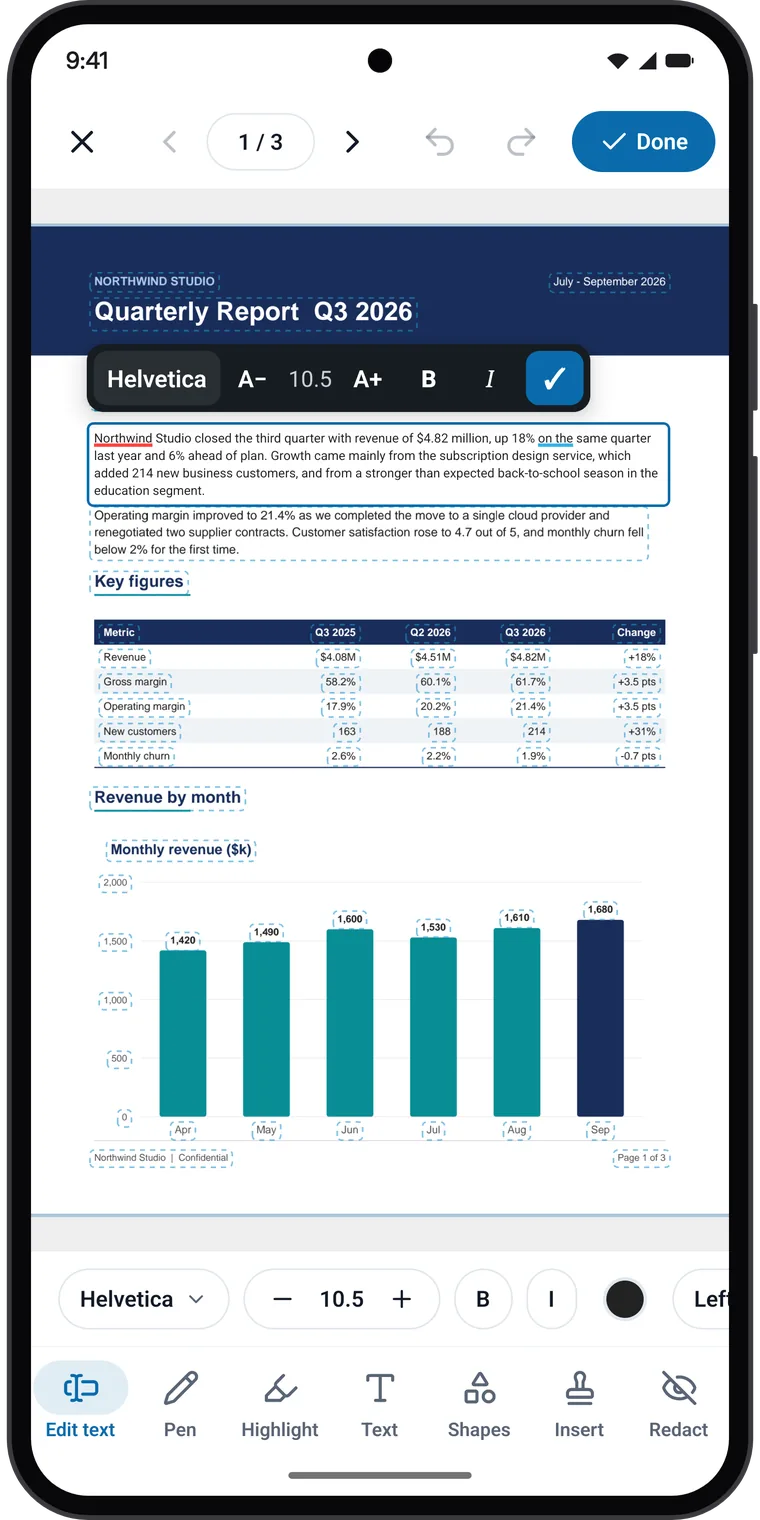
Steps
- Open your PDF in DocMaster.
- Tap Edit in the viewer's toolbar.
- Choose Edit text in the toolbar. The text on the page that can be edited is outlined.
- Tap the line or paragraph you want to change.
- Retype the words. You can also change the size, make it bold or italic, and change the colour and alignment.
- Tap the check mark to finish that paragraph. Repeat for other changes, on any page.
- Tap Done, then choose Replace Original or Save as New Copy.
All of this happens on your phone. The file isn't uploaded.
About the font
PDFs often include only the letters they actually use from a font (this is called a "subset"). So:
- If you type letters that are already in the file's font, DocMaster uses that same font.
- If you type a letter the file's font doesn't contain, DocMaster uses a close match for those letters and tells you which font it used.
In practice, fixing a number, a date or a misspelled name usually works with the original font, because those letters are often already in the file.
When Edit text won't work
DocMaster tells you when a page can't be edited, and why. The common cases:
- Scanned pages. The app says the page is a scan and its words are a picture. Use the Text tool to add new text on top instead.
- Password-protected PDFs. Use Unlock PDF in the Tools tab first (you need the password), then edit the unlocked copy.
- Some writing systems. Text in scripts that join or reorder letters, such as Arabic, Urdu, Hebrew and Hindi, can't be edited in place yet.
- Unusual text, such as vertical text or hidden text layers.
Tips for clean edits
- Keep it short. Replacing a word or a number with something of a similar length keeps the layout neat. A much longer sentence may need a smaller size.
- Save a new copy first. Choose Save as New Copy the first time, so you still have the original if you change your mind.
- Check the result in another app. Open the saved PDF in another viewer to make sure it looks right before you send it.
- Need a signature too? Our guide on how to sign a PDF on Android covers form fields, dates and a saved signature.
- Remove private details properly. If you need to hide something (an account number, an address), don't cover it with a box. Use a redact tool that deletes the text. DocMaster's Redact removes the text under the black box from the file; lines and shapes under the box are covered, and the tool tells you so.
Which method is right for you?
| Your situation | Best method |
|---|---|
| You have the original Word or Docs file | Edit it and export a new PDF |
| A typo, date, name or price in a normal PDF | An editor that changes the real text, such as DocMaster |
| The page is a scan or photo | Add a text box on top (or rescan the corrected paper) |
| You need to hide private information | Use a real redaction tool, never a white box |
Summary
PDFs are made for viewing, which is why editing them on a phone often feels impossible. For small fixes (a wrong word, a date, a name) you don't need a computer. Use an editor that changes the PDF's own text, keep the change short, and save a copy. For scanned pages, add text on top instead; and if you still have the original document, editing that is always the cleanest result.
If the edited file is too big to upload, compress it to under 1 MB, and if it belongs with other documents, merge them into one PDF.