
How to Merge PDF Files on Android (Offline, Without Uploading)
Combine several PDFs into one file on your Android phone. Put them in order, merge, and send one tidy PDF, with or without an internet connection.
An application asks you to "upload all documents as one PDF": your CV, your degree, your ID. Or you scanned a contract in three parts and want one file. On a computer, merging PDFs is easy. On a phone, it's less obvious where to start.
The short answer: Android has no standard built-in tool for merging PDFs (some phone makers' file apps may add one). To combine PDFs on your phone, use either a PDF app that merges files on the phone, or an online merger in your browser that you upload the files to. Put the files in the right order, merge, and check the result.
Here's how to do both, and how to avoid the most common mistakes.
Before you start: get your files ready
A few minutes of preparation saves a lot of trouble:
- Find all the files. Most downloads are in the Downloads folder. Open the Files app on your phone to check.
- Rename them in order if you can, for example
1-cv.pdf,2-degree.pdf,3-id.pdf. This makes it easy to pick them in the right order later. - Check for passwords. A password-protected (locked) PDF usually can't be merged until you unlock it.
- Photos instead of PDFs? If some of your pages are photos (for example, a picture of your ID card), turn them into a PDF first. Many PDF apps have an "Image to PDF" tool.
Option 1: Merge PDFs on your phone with DocMaster
DocMaster is our free PDF app for Android (get it on Google Play). It shows ads, but there is no account and no watermark. Its PDF tools run on your phone, so your files are not uploaded and you don't need an internet connection to merge.
Steps
- Open DocMaster and go to the Tools tab.
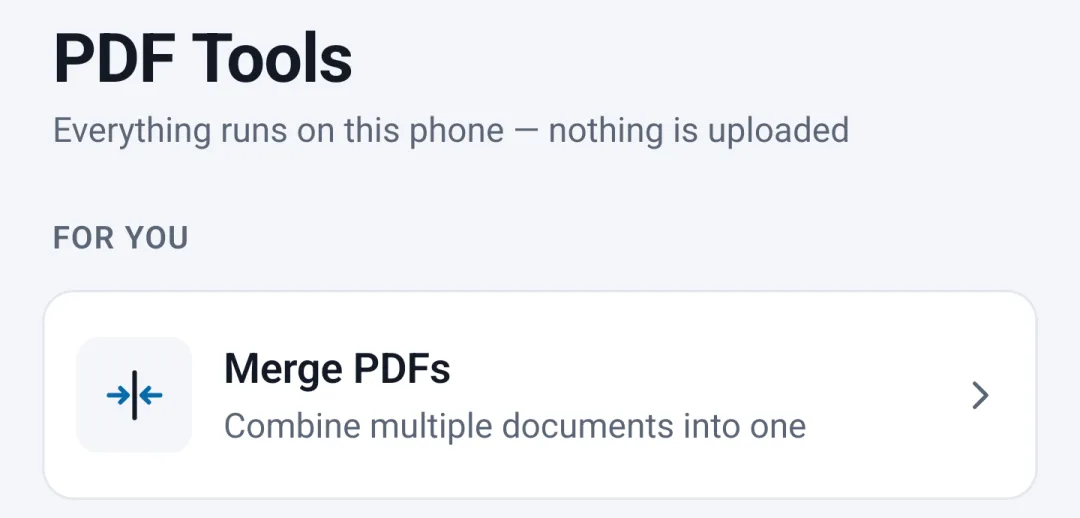
- Tap Merge PDFs.
- Choose the PDFs you want to combine. You can select several at once, and tap Add more files to add others later.
- Put them in order. Use the up and down arrows next to each file. The first file in the list becomes the first pages of the new PDF.
- Tap Merge Files.
- The new PDF is saved to your Downloads folder, with a name based on the files that went in. Your original files are not changed.
If one of the files is locked or damaged, DocMaster tells you which one. You can merge without it, or unlock it first with Unlock PDF in the Tools tab (you need its password).
Related tools you may need
The same Tools tab has a few tools that help when you prepare documents:
- Split PDF: pick pages or page ranges, or split a long file into equal parts, to send only what's needed.
- Organize pages: move, turn or remove pages. It saves a new copy and keeps the original.
- Image to PDF: turn photos into one PDF.
- Compress: make the merged file smaller if a website has a size limit. Our guide to compressing a PDF on Android explains the levels and size limits.
Option 2: Merge PDFs with an online tool
Many websites merge PDFs for free, right in your phone's browser. The steps are similar on most of them:
- Open the website in Chrome (or any browser).
- Tap the upload button and pick your PDFs.
- Drag them into the right order.
- Tap the merge button and download the result.
This is handy when you don't want to install anything. But remember:
- Your files are uploaded to the website's server. That's fine for a menu or a brochure. For an ID card, bank statement, medical record or contract, think twice and read the site's privacy policy.
- Free plans often have limits, such as a number of tasks per day or a maximum file size.
- You need a stable connection. Uploading several large files on mobile data can be slow and costly.
After merging: check these four things
Merging is quick, but always check the result before you send it:
- Page order. Scroll through the whole file. Is the cover page first? Is anything upside down? If a page is sideways, use a tool like Organize pages to turn it.
- Page count. Add up the pages of the original files. The merged file should have the same total.
- File size. Many upload forms have a limit (often 1 MB to 10 MB). If the merged file is too big, compress it.
- The file name. Rename it to something clear, like
Ahmed-Khan-application.pdf, before you upload it.
Common problems and fixes
"One file won't merge." It's probably password-protected or damaged. Unlock it with its password, or open it and save a fresh copy, then try again.
"The pages are in the wrong order." Go back and change the order before merging. Renaming files with numbers first (1-, 2-, 3-) makes this easier.
"The merged file is too big to upload." Compress it, or check whether the website accepts several separate files instead.
"I can't find the merged file." Look in Downloads in your phone's Files app, and sort by date so the newest file is at the top.
On the phone or online: which should you pick?
| Your situation | Good choice |
|---|---|
| Private documents (ID, bank, medical, contracts) | Merge on the phone, with a tool that doesn't upload files |
| No internet, or slow mobile data | Merge on the phone |
| Public files, and you don't want to install an app | An online merger is fine |
| You also need to reorder, split or compress | A PDF app with all these tools |
Summary
To merge PDF files on Android: collect the files, put them in order, merge them with an app or an online tool, then check the order, page count and size. For anything personal, choose a tool that works on your phone, so your documents never leave it.
If a page needs your signature first, see how to sign a PDF on Android; to fix a wrong name or date inside a page, see how to edit text in a PDF on Android.